
Local modification of armor
Local modification of the reinforcement can be done either by typing directly in the descriptive grids for the longitudinal bars and stirrups, or graphically, using the tools available in the reinforcement display sheet.
Edit by typing in grids
To modify the displayed reinforcement, you can open the descriptive grids of the longitudinal reinforcement and stirrups for the current column, via the Data|Reinforcement|Columns menu option.
The two grids can be repositioned on the screen, minimizing the screen area covered and allowing you to switch from one window to the other with a simple click of the mouse.
Reinforcement modifications are made within the list sheets, by appropriately modifying the data defining the longitudinal bar groups or the stirrup arrangement. Furthermore, in the longitudinal reinforcement sheet, new bar groups can be inserted and those no longer needed can be deleted from the list. The commands for inserting or deleting groups are the same as those described for the input sheets. All changes made to the list sheets are reflected in the drawing's graphics window as soon as it is brought to the foreground. At the same time, the program rechecks the cross-sections of the entire upright and updates the stress diagram, if present.
Graphic modification of armor
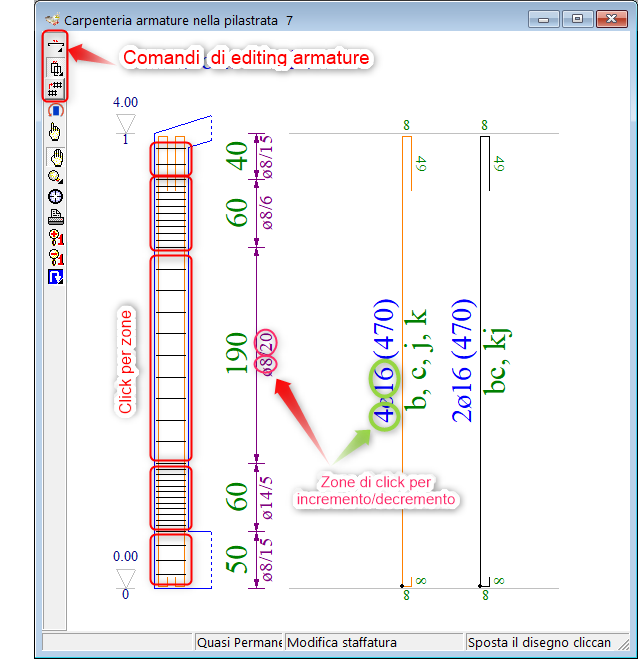
The bars and stirrups can also be modified graphically using the commands in the Longitudinal Bars Panel and the Stirrup Panel, shown below. The two panels are opened by clicking the corresponding button on the toolbar.
Graphic editing of the reinforcement in the columns
The editing commands have been grouped into the three buttons on the toolbar.
 Knitting Actions
Clicking the button opens the longitudinal irons panel.
 Insert Iron with Drag Action
The command opens the Current Beam Reinforcement settings panel.
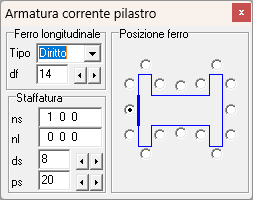
In the panel you can select the iron parameters to insert:
type: iron type (straight only),
diameter; from ∅6 to ∅32,
position:side of the section (flap) on which to place the iron, to be selected with the corresponding box.
Once the parameters have been set, proceed by clicking and dragging the mouse in the BOM area from the start to the end zone;
 Action Increase/Decrease the number of rows in an existing bundle
- to increase, right-click on a bundle in the list,
- To reduce, left-click on a bundle in the list.
 Clear iron action
- To delete an iron, click the group in the list.
 Change Diameter Action
- to increase the diameter of the iron click on the text with the right mouse button,
- to reduce the diameter of the iron click on the text with the left mouse button.
 Edit Flap Action
- inactive.
 Actions for stirrups
Clicking on the button opens the bracket panel Modify Stirrup Action
The command opens the Current beam reinforcement settings panel, which contains the Stirruption box.
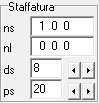
In the box you can set the parameters:
ns: number of closed stirrups on the web and on the two wings, understood as shapes placed side by side in a spacing,
nl: number of ties on the core and on the two wings, understood as shapes placed side by side in an interaxis,
ds: bracket diameter,
ps: stirrup step,
We then proceed by clicking on the pillar outline corresponding to the desired area (foot, centre, head, node).
Alternatively, you can operate in increments/decrements;
- to reduce/increase the diameter click on the bracket diameter text with the left/right mouse button,
- To reduce/increase the step, click on the step text of the bracket with the left/right mouse button.
 Actions for cloning armor in bulk
This command allows you to clone a column's reinforcement, defined as the set of longitudinal bars and stirrups in the three zones (foot, center, and head). The operation therefore consists of two typical copy/paste steps:
- To copy the armature, hold down Ctrl and click the origin pillar
- To paste, click on the destination pillars
Please note that the operation clones the source reinforcement and therefore completely deletes the previous reinforcement on the destination pillars.
Constraints on changes
Please note that even in this case, the program imposes only formal constraints on reinforcement modifications, and compliance with the checks remains the designer's responsibility. In this case, the verification histograms, updated after each modification, are a great help.