
Plate Armor Sheet
Plate Armor Sheet
The sheet is opened by choosing the Edit|Armature|Platee menu option.
Once the reinforcement has been sized in the slabs, it is possible to have complete control over the arrangement of the reinforcement and the stress and strain state existing in the designed slabs. Specifically, it is possible to examine the arrangement of the reinforcement in detail both in plan and in section, viewing the maximum stresses in the steel and concrete acting in the lateral and mid-span sections of each slab field in histogram form. The displayed reinforcement can also be modified in quantity and arrangement. Modification of the reinforcement can be performed both graphically, using the mouse, or by modifying the descriptive data of the reinforcement shown in the corresponding data grids. The spacing of the reinforcement and its diameter can be varied.
The visualization of the slabs is created by succession of floor zones and the drawing shows all the details necessary for a complete definition of the arrangement of the reinforcements.
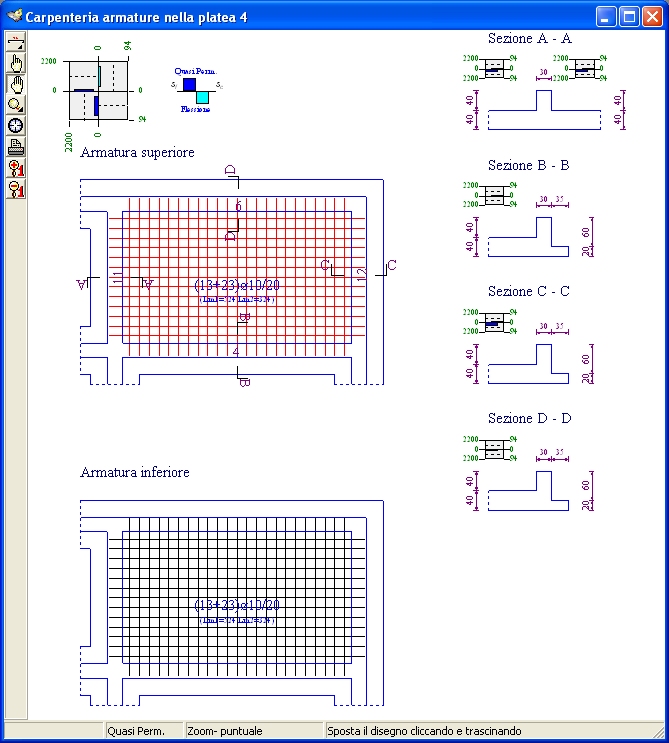
The window contains the usual management components, already encountered in other graphic windows:
- the title bar, which contains the audience reference;
- the toolbar, with the buttons associated with the work tools;
- the status bar, which displays verification references and messages about the operation in progress.
Popup Menu
Right-clicking inside the Drawing area brings up a Popup Menu that displays the drawing options sheet described later.
Toolbar
The Beams sheet toolbar consists of the following buttons:
 Irons Element: Opens the longitudinal irons tool panel.
 Locate Item: Allows you to select an item by clicking it with the mouse and synchronize all open windows with respect to the clicked item.
 Move the drawing: Allows you to move the drawing by clicking and dragging the mouse.
 Zoom: opens the zoom toolbar.
 Default View: Resizes and centers the drawing proportionally to the window size.
 Print Preview: Enables the print preview of the drawing.
 Enlarge fonts: increases the font size of the characters.
 Reduce fonts: reduce the font size of the characters.
For the use of common tools, what is said in the paragraph relating to plants remains valid.
Change of level and audience
You can quickly change the displayed audience by clicking on the buttons on the command bar.
 to move to the next audience
 to go to the previous audience
Drawing options
The drawing options are accessible from the popup menu that appears, as already mentioned, by right-clicking on the drawing area or from the keyboard using the
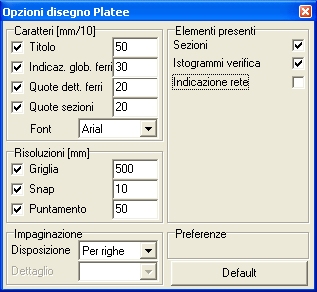
A more general discussion of Drawing Options has been covered in a previous section of this same chapter, to which you are referred for the methods of use and for the criteria for sizing the characters for text.
As you can see in the following figure, the Plate Drawing Options sheet is similar to the one for plants, except for the necessary specializations for the case in question.
Numbering and dimensioning
The drawing shows the number and diameter of the longitudinal bars, the partial dimensions of the irons and the overall cutting length.